Search products
Remove item Thumbnail image Product Price Quantity Subtotal
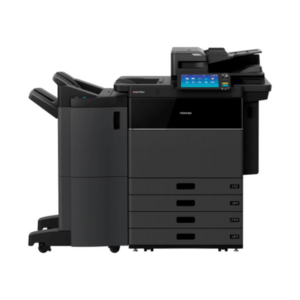
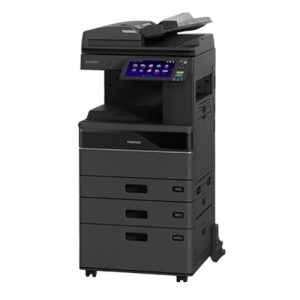
× oshiba e-STUDIO7529A Multifunction Printer with dual paper drawers and large touchscreen panel. Toshiba e-STUDIO7529A Multifunction Printer Price in Bangladesh 0.00৳ 
0.00৳ 
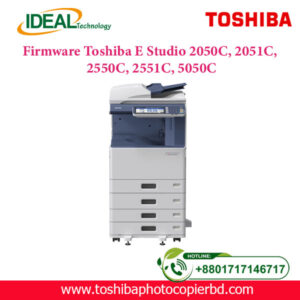
× Download official firmware for Toshiba e-Studio 2050C, 2051C, 2550C, 2551C, and 5050C. Fix errors, restore functionality, and upgrade your MFP system. Fast digital delivery. Firmware Toshiba E Studio 2050C, 2051C, 2550C, 2551C 2,500.00৳ 
2,500.00৳ 
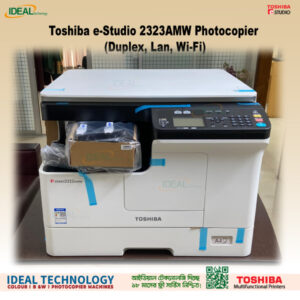
× Toshiba e-Studio 2323AMW Photocopier (Duplex, Lan, Wi-Fi) Toshiba e-Studio 2323AMW Photocopier (Duplex, Lan, Wi-Fi) 58,000.00৳ 
58,000.00৳ 
× "Copy King: The Go-To Photocopier Repair Shop in Bangladesh!" Toshiba Photocopier Repairing Service Price in Bangladesh 700.00৳ 
700.00৳ 
× Toshiba Small Series Photocopier Developer Unit Gear Toshiba Small Series Photocopier Developer Unit Gear 1,200.00৳ 
1,200.00৳ 
× Buy Toshiba GATE-ADU-H373 Original Parts for e-Studio 3508A, 3618A, 3518A, 4508A, 4518A, 4618A,  5008A, 5018A, 3528A, 4528A, Photocopiers. Toshiba GATE-ADU-H373 Exit Guide Original Parts 3,200.00৳ 
3,200.00৳ 
× Ideal Technology (BD) Ltd. - Your Solution for Toshiba e-Studio 2021AC Basic Colour Copier Machines" Meta Description: "Upgrade your office efficiency with Toshiba e-Studio 2021AC Basic Colour Copier Machines from Ideal Technology (BD) Ltd. Experience high-quality prints, fast copying, and user-friendly features. Find the perfect solution for all your copying needs and revolutionize your workplace. Contact us today!" Toshiba e-Studio 2021AC Color Laser Photocopier 108,500.00৳ 
108,500.00৳ 
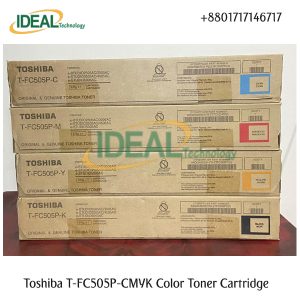
× Brand: TOSHIBA Model: T-FC505P-Y Colour Type: Yellow (Y) Print Technology: Laser Printing Yield (Approx): ± 20,000 Pages/Set Compatible: Toshiba e-Studio 2505AC,3005AC,3505AC,4505AC,5005AC. Toshiba T-FC505P-CMYK Color Toner Cartridge 39,000.00৳ 
39,000.00৳ 
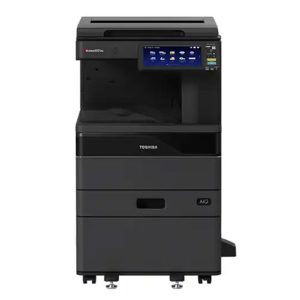
× Brand: TOSHIBA Model: E-Studio 3028A Monochrome Basic MFPs. Function: Copy, Print, Scan. Speed: 30 ppm A4, 16 ppm A3. RAM: 4GB, Storage: SSD 128GB. Display: 10.1" Colour WSVGA Touch Screen Paper Capacity: Standard 2 x 550 + 100 Sheets Print & Scanner: Built in Print & Color Scan Facilities Toshiba e-Studio 3028A Copier Machine With RADF 219,500.00৳ 
219,500.00৳ 
× Main Motor Drive Gear For Toshiba E-Studio 2523A Main Motor Drive Gear For Toshiba E-Studio 2523A 650.00৳ 
650.00৳ 
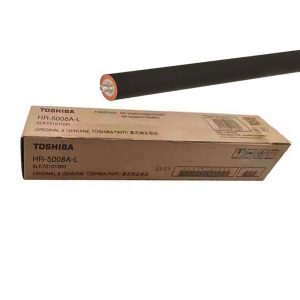
× The Toshiba HR-5008 Original Fuser Roller works for Heating Section to make proper printing of the document easy process. Its estimated copy life is 1,25,000,  made by China & supported for Toshiba e-Studio 3508A; 4508A; 5008A; 3518A; 4518A; 5018A; 3618A; 4618A; 5118A Series Photocopiers . Toshiba HR-5008A-L Original Fuser Pressure Roller 7,500.00৳ 
7,500.00৳ 
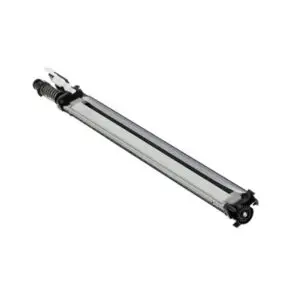
× Part Name: 6LJ70377000, TR-BLT_CLN-H210. Type: Genuine Toshiba Part Function: Cleans the transfer belt to maintain print quality and prevent transfer defects such as streaks or smudges. Compatibility: Compatible with Toshiba e-STUDIO models, ensuring smooth operation and efficient copier performance. Durability: Designed for high-volume environments, providing long-lasting use with minimal maintenance. Performance: Ensures clear, crisp prints by maintaining the transfer belt’s optimal function and preventing print quality degradation. Supported: Toshiba e-Studio 2051C, 2551C, 2050C, 2550C, 2000AC, 2500AC, 2505AC, 3005AC, 3505AC, 4505AC, 2010AC, 2510AC, 2515AC, 3015AC, 3515AC, 4515AC, 2110AC, 3115AC, 2020AC, 2021AC, 3025AC Condition: 95% New  Toshiba TR-BLT_CLN-H210 Transfer Belt Cleaning Assembly 9,500.00৳ 
9,500.00৳ 
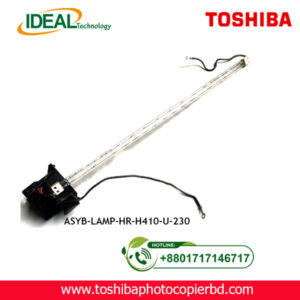
× Specifications of Heater Lamp for Toshiba Photocopier e Studio 2508A/2518A/2618A/2528A/3008A/3018A/3028A/3118A Brand: Toshiba Part Name: ASYB-LAMP-HR-H410-U-230 Part Number: 6LK68052200  Products: Heater Lamp/Fuser Heating Lamp Supported: e Studio 2508A/2518A/2618A/2528A/3008A/3018A/3028A/3118A. Condition: Recondition. Type: 100% Original. Color: Clear. Material: Glass.  Long-lasting.  Easy setting. Heater Lamp e Studio 2508A/2518A/2618A/2528A/3018A 6,200.00৳ 
6,200.00৳ 
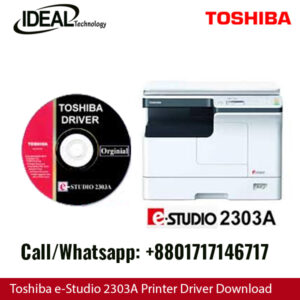
× Printer & Scanner Driver for Toshiba e-Studio 2303A, 2303AM, 2803A, 2309A, 2809A: An Expert Guide Are you looking for the right printer and scanner driver for your Toshiba e-Studio 2303A, 2303AM, 2803A, 2309A, or 2809A? Look no further! In this article, we will provide you with detailed information on how to install, update, and troubleshoot the drivers for these devices. Understanding the Importance of Drivers Drivers are essential software components that allow your printer and scanner to communicate with your computer. Without the proper drivers installed, your devices may not function correctly, leading to issues such as printing errors, scanning problems, and even system crashes. It is crucial to keep your drivers up to date to ensure optimal performance and compatibility with your operating system. How to Install Printer & Scanner Drivers Installing the printer and scanner drivers for your Toshiba e-Studio devices is a straightforward process. You can either download the drivers from the official Toshiba website or use the included installation CD that came with your device. Follow these steps to install the drivers: Download the Drivers: Visit the Toshiba website and navigate to the support section. Enter your device model number (e.g., e-Studio 2303A) and locate the drivers section. Download the latest driver for your operating system. Run the Installer: Double-click on the downloaded file to run the installer. Follow the on-screen instructions to complete the installation process. Connect the Device: Connect your Toshiba e-Studio printer or scanner to your computer using a USB cable or through a network connection. Test the Device: Once the installation is complete, test your device to ensure that it is functioning correctly. Updating Printer & Scanner Drivers Regularly updating your printer and scanner drivers is essential to fix bugs, improve performance, and add new features. Here's how you can update the drivers for your Toshiba e-Studio devices: Check for Updates: Visit the Toshiba website and navigate to the support section. Enter your device model number and look for the latest driver updates. Download and Install: Download the updated driver and follow the same installation process as mentioned earlier. Restart Your Device: After installing the updates, restart your computer to apply the changes. Troubleshooting Printer & Scanner Driver Issues If you encounter any issues with your Toshiba e-Studio printer or scanner drivers, here are some common troubleshooting steps you can follow: Check Connection: Ensure that your device is properly connected to your computer and that the cables are not damaged. Restart Your Devices: Sometimes, a simple restart of your printer, scanner, and computer can fix minor driver issues. Reinstall Drivers: If the problem persists, try reinstalling the drivers by following the installation steps mentioned above. Contact Support: If you are still facing issues, contact Toshiba customer support for further assistance. In conclusion, having the right printer and scanner drivers for your Toshiba e-Studio devices is crucial for optimal performance. By following the steps outlined in this article, you can easily install, update, and troubleshoot your drivers to ensure smooth operation. Remember to regularly check for driver updates to keep your devices running smoothly. Toshiba e-Studio 2303A Printer & Scanner Driver 100.00৳ 
100.00৳ 
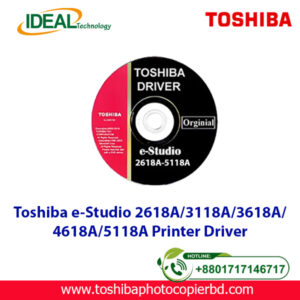
× Toshiba e-Studio 2618A/3118A/3618A/4618A/5118A Printer Driver Toshiba e-Studio 2618A/3118A/4618A Printer Scanner Driver 200.00৳ 
200.00৳ 
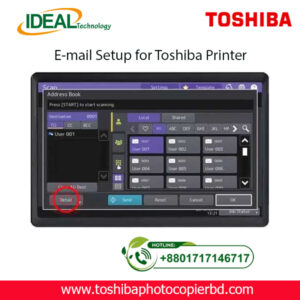
× How to Setup Email on Toshiba e-Studio Printer? If you are looking to set up email on your Toshiba e-Studio printer, you have come to the right place. In this article, we will walk you through the step-by-step process of configuring your printer to send emails. With the advancements in technology, printers are no longer limited to just printing documents. They can now be used for various tasks, including sending emails. Setting up email on your Toshiba e-Studio printer is a simple process that can be done in just a few minutes. Follow the steps below to get started. Step 1: Check Your Network Connection Before setting up email on your Toshiba e-Studio printer, ensure that your printer is connected to the same network as your computer. This is essential to establish a connection between the printer and the email server to send emails. Step 2: Access the Printer’s Web Interface To begin the setup process, access the web interface of your Toshiba e-Studio printer. You can do this by entering the printer’s IP address into your web browser. Once you are on the web interface, navigate to the settings menu to configure the email settings. Step 3: Configure Email Settings In the settings menu, locate the email settings option and enter the details of your email server, such as the SMTP server address, port number, and authentication settings. You will also need to enter the email address from which the emails will be sent. Step 4: Test Email Settings After entering the email settings, test the configuration by sending a test email from the printer. This will help you verify that the email setup is successful and that you can send emails from your Toshiba e-Studio printer. Step 5: Send Emails from Your Printer Once the test email is sent successfully, you can now start sending emails directly from your Toshiba e-Studio printer. Simply select the document you want to send via email and choose the email option from the printer’s menu. By following these simple steps, you can easily set up email on your Toshiba e-Studio printer and send emails directly from the printer. This convenient feature allows you to streamline your workflow and send important documents quickly and efficiently. In conclusion, setting up email on your Toshiba e-Studio printer is a straightforward process that can greatly enhance the functionality of your printer. With the ability to send emails directly from the printer, you can save time and simplify your work process. So why wait? Follow the steps outlined above and start sending emails from your Toshiba e-Studio printer today! SEO Meta-description: Learn how to set up email on your Toshiba e-Studio printer in just a few simple steps. Send emails directly from your printer hassle-free. At Ideal Technology BD, we are dedicated to providing expert guidance on setting up and optimizing your Toshiba e-Studio printer. If you have any questions or need assistance with configuring your printer, feel free to reach out to our team for support. Happy printing! Toshiba Photocopier e-Studio MFP Email Setup 2,000.00৳ 
2,000.00৳ 

Cart totals

Subtotal 458,750.00৳ 
Total 458,750.00৳ 
Search products
Back to Top
Product has been added to your cart