Search products
Remove item Thumbnail image Product Price Quantity Subtotal
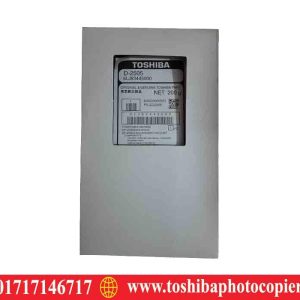
× Toshiba e-studio 2006 Developer D-2505 Price in Bangladesh Toshiba e-studio 2505H Developer D-2505 Price in BD 2,500.00৳ 
2,500.00৳ 
× Toshiba e-STUDIO 2006 Start Copy Button – Part No: 6LH882340 Toshiba e-STUDIO 2006 Start Copy Button Price in Bangladesh 1,500.00৳ 
1,500.00৳ 
× Toshiba e-studio 2006 Developer D-2505 Price in Bangladesh Toshiba Photocopier D-2505 Developer 2,500.00৳ 
2,500.00৳ 
× Original Power Supply Board for Toshiba 3115AC Color Photocopier Toshiba e-Studio 3115AC Power Supply Unit 19,000.00৳ 
19,000.00৳ 
× Main Motor Drive Gear For Toshiba E-Studio 2523A Main Motor Drive Gear For Toshiba E-Studio 2523A 650.00৳ 
650.00৳ 
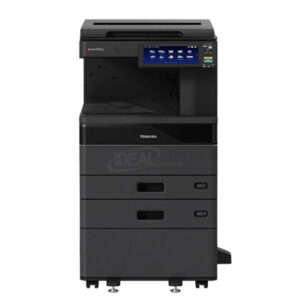
× ### **Main Features of Toshiba e-STUDIO 2528A Copier** ✔ **Fast Copying Speed** – **25 pages per minute (PPM)** for efficient document processing. ✔ **High-Quality Printing** – **600 x 600 dpi resolution** for sharp and professional prints. ✔ **Quick First Copy Out Time** – Produces the first copy in **less than 4.3 seconds**. ✔ **Large Paper Capacity** – **Standard 1,200 sheets**, expandable up to **5,200 sheets**. ✔ **Automatic Duplex Printing** – Standard **double-sided printing** for cost savings. ✔ **10.1” Color Touch Screen** – Intuitive **WSVGA tilting display** for easy operation. ✔ **Multiple Copying Function** – Capable of making **up to 999 copies** in a single job. ✔ **Versatile Paper Handling** – Supports **A3, LD, and custom paper sizes** from **3.9” x 5.8” to LD**. ✔ **High Monthly Duty Cycle** – Handles up to **100,000 pages per month** for heavy-duty printing. ✔ **Powerful Performance** – Equipped with **4GB RAM** and **128GB SSD** for smooth operations. ✔ **Energy-Efficient** – **Fast warm-up time** (approx. **20 seconds**) for minimal downtime. ✔ **Reliable and Durable** – Built for **long-lasting performance** in business environments. ✔ **Flexible Paper Weights** – Supports paper from **16 lb Bond to 140 lb Index**. ✔ **Standard & Optional Paper Feeders** – Various drawer and cassette options for **customized paper handling**. ✔ **Low Power Consumption** – Maximum **1.8kW (120V)** for energy efficiency. This **high-performance Toshiba copier** is perfect for **businesses, offices, and enterprises** that require **efficient, high-volume printing, copying, and scanning** solutions. 🚀 Toshiba e-STUDIO 2528A Best Monochrome Photocopier 148,000.00৳ 
148,000.00৳ 
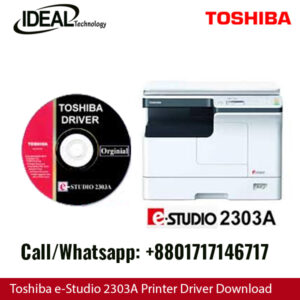
× Printer & Scanner Driver for Toshiba e-Studio 2303A, 2303AM, 2803A, 2309A, 2809A: An Expert Guide Are you looking for the right printer and scanner driver for your Toshiba e-Studio 2303A, 2303AM, 2803A, 2309A, or 2809A? Look no further! In this article, we will provide you with detailed information on how to install, update, and troubleshoot the drivers for these devices. Understanding the Importance of Drivers Drivers are essential software components that allow your printer and scanner to communicate with your computer. Without the proper drivers installed, your devices may not function correctly, leading to issues such as printing errors, scanning problems, and even system crashes. It is crucial to keep your drivers up to date to ensure optimal performance and compatibility with your operating system. How to Install Printer & Scanner Drivers Installing the printer and scanner drivers for your Toshiba e-Studio devices is a straightforward process. You can either download the drivers from the official Toshiba website or use the included installation CD that came with your device. Follow these steps to install the drivers: Download the Drivers: Visit the Toshiba website and navigate to the support section. Enter your device model number (e.g., e-Studio 2303A) and locate the drivers section. Download the latest driver for your operating system. Run the Installer: Double-click on the downloaded file to run the installer. Follow the on-screen instructions to complete the installation process. Connect the Device: Connect your Toshiba e-Studio printer or scanner to your computer using a USB cable or through a network connection. Test the Device: Once the installation is complete, test your device to ensure that it is functioning correctly. Updating Printer & Scanner Drivers Regularly updating your printer and scanner drivers is essential to fix bugs, improve performance, and add new features. Here's how you can update the drivers for your Toshiba e-Studio devices: Check for Updates: Visit the Toshiba website and navigate to the support section. Enter your device model number and look for the latest driver updates. Download and Install: Download the updated driver and follow the same installation process as mentioned earlier. Restart Your Device: After installing the updates, restart your computer to apply the changes. Troubleshooting Printer & Scanner Driver Issues If you encounter any issues with your Toshiba e-Studio printer or scanner drivers, here are some common troubleshooting steps you can follow: Check Connection: Ensure that your device is properly connected to your computer and that the cables are not damaged. Restart Your Devices: Sometimes, a simple restart of your printer, scanner, and computer can fix minor driver issues. Reinstall Drivers: If the problem persists, try reinstalling the drivers by following the installation steps mentioned above. Contact Support: If you are still facing issues, contact Toshiba customer support for further assistance. In conclusion, having the right printer and scanner drivers for your Toshiba e-Studio devices is crucial for optimal performance. By following the steps outlined in this article, you can easily install, update, and troubleshoot your drivers to ensure smooth operation. Remember to regularly check for driver updates to keep your devices running smoothly. Toshiba e-Studio 2303A Printer & Scanner Driver 100.00৳ 
100.00৳ 

Cart totals

Subtotal 174,250.00৳ 
Total 174,250.00৳ 
Search products
Back to Top
Product has been added to your cart