
"Copy King: The Go-To Photocopier Repair Shop in Bangladesh!"

Toshiba Copiers Store & Service Center In Bangladesh: Your One-Stop Solution

Toshiba Copiers Store & Service Center In Bangladesh: Your One-Stop Solution

Are you in need of reliable and efficient Toshiba copiers in Bangladesh? Look no further than Ideal Technology BD, your go-to store and service center for all your copier needs. With years of experience and a team of expert technicians, we are dedicated to providing top-notch service and support to our customers. Let’s dive into what sets us apart as Bangladesh’s premier destination for Toshiba copiers.

Expertise in Toshiba Copiers

When it comes to copiers, Toshiba is a trusted brand known for its durability and high-quality performance. At Ideal Technology BD, we specialize in offering a wide range of Toshiba copiers to meet your specific requirements. Whether you need a basic model for everyday printing or a multifunctional device for more complex tasks, we have you covered. Our team of experts is trained to assist you in selecting the perfect copier for your needs, ensuring that you get the most value for your money.

Unmatched Customer Service

At Ideal Technology BD, customer satisfaction is our top priority. From the moment you walk into our store to the ongoing maintenance and support of your Toshiba copier, we strive to provide the best possible service. Our friendly and knowledgeable staff is always available to answer any questions you may have and offer guidance on the best practices for using your copier. Whether you need help troubleshooting an issue or simply want to learn more about the features of your device, we are here to help every step of the way.

Convenient Service Center Locations

In addition to our extensive selection of Toshiba copiers, Ideal Technology BD also operates multiple service centers throughout Bangladesh. This allows us to provide prompt and efficient support to our customers, ensuring that any issues with your copier are quickly resolved. Our team of skilled technicians is equipped to handle everything from routine maintenance to complex repairs, keeping your copier running smoothly and minimizing downtime. With our service centers strategically located, you can rest assured that help is never far away when you need it most.

Trustworthy and Reliable

When you choose Ideal Technology BD as your Toshiba copier store and service center, you can trust that you are in good hands. Our years of experience in the industry have earned us a reputation for reliability and professionalism. We take pride in offering transparent pricing, honest recommendations, and dependable service, ensuring that you receive the best possible experience from start to finish. With us, you can have peace of mind knowing that your copier needs are taken care of by a company you can trust.

Conclusion

In conclusion, Ideal Technology BD is your one-stop solution for all your Toshiba copier needs in Bangladesh. With our expertise, unmatched customer service, convenient service center locations, and reputation for trustworthiness, we are confident that we can meet and exceed your expectations. Visit us today to experience the difference for yourself and discover why we are the leading Toshiba copier store and service center in Bangladesh.

Toshiba-e-Studio-2518A_3018A_3518A_4518A_5018A-No-Power-Solution

Toshiba e-Studio 2518A/3018A/4518A No Power Solution

Toshiba e-Studio 2518A/3018A/3518A/4518A/5018A No Power Solution

Are you experiencing power issues with your Toshiba e-Studio 2518A/3018A/3518A/4518A/5018A printer? If so, you’re not alone. Power problems can be frustrating and disruptive, but with the right troubleshooting steps, you can get your printer up and running again in no time.

Common Causes of Power Issues

There are several common reasons why your Toshiba e-Studio printer may not be powering on. Some of the most common causes include:

  1. Faulty Power Cord: A damaged or faulty power cord can prevent your printer from receiving power.
  2. Power Outlet Issues: If the power outlet is not working correctly, your printer may not receive power.
  3. Power Supply Failure: The internal power supply of the printer may have failed, causing it to not power on. (Maximum Tims Power Board Problem)

Troubleshooting Steps

If your Toshiba e-Studio printer is experiencing power issues, here are some troubleshooting steps you can follow:

  1. Check the Power Cord: First, check the power cord for any signs of damage or wear. Replace the power cord if necessary.
  2. Test the Power Outlet: Plug another device into the power outlet to ensure it is working correctly. If not, try plugging the printer into a different outlet.
  3. Reset the Printer: Sometimes, resetting the printer can help resolve power issues. Turn off the printer, unplug it from the power source, wait for a few minutes, and then plug it back in and turn it on.
  4. Check Printer Settings: Make sure the printer settings are correct and that no software glitches are causing the power issue.

Contacting Technical Support

If you have followed these troubleshooting steps and are still experiencing power issues with your Toshiba e-Studio printer, it may be time to contact technical support. The experts at Toshiba can help diagnose the issue and provide a solution to get your printer back up and running.
Don’t let power issues with your Toshiba e-Studio printer slow you down. By following these troubleshooting steps and seeking help from technical support if needed, you can quickly resolve any power problems and get back to printing efficiently.

For Technical Support: +8801717146717

Enjoy reliable, high-quality document output with a print resolution of up to 1,200 x 1,200 dpi and speeds of up to 25 pages per minute. Add to Inquire List.

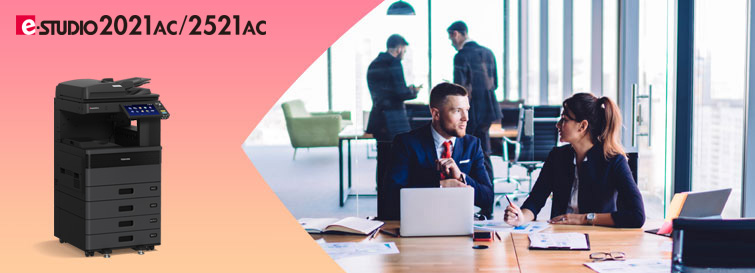
e-STUDIO2021AC/2521AC

The e-STUDIO2021AC/2521AC comprises an A3/LD-size color MFP series that offers print speeds of 20/25 ppm. For group projects, for business, and for those who need color print functions, we are here to assist you. The series incorporates industry-leading technology and innovations that are designed to help small groups of people stay connected and simple.​

Specifications

Modele-STUDIO2021ACe-STUDIO2521AC
General Feature
Copy / Print Speed (ppm)Color2025
B & W2025
Warm-up TimeAfter power-onApprox. 21 sec. (68F/ 20C)
From sleep mode220 – 240V : Less than 13.1 sec. (68F/ 20C)
120V : Less than 15 sec. (68F/ 20C)
From low power mode220 – 240V : Less than 13.1 sec. (68F/ 20C)
120V : Less than 15 sec. (68F/ 20C)
MemoryStd. 4GB
(Main memory + Page memory)
StorageStd. 128 GB (SSD) (Shared for all imaging functions)/ Opt. 512 GB (SSD) or 320 GB (HDD)
Dimension (W × D × H)
(Height at original glass/Angle of control panel:90 degrees)
585 x 586 x 662 mm / 23.0″ × 23.1″ × 26.1″
WeightApprox. less than 58.9 kg / 129.8 lbs (Incl. Drum)
Input Paper CapacityStandard350 sheets (250+100)
(20 lb & 80 gsm)
Maximum2,900 sheets (20 lb & 80 gsm, w/Optional LCF)
Available Paper Weight
(via SFB)
60 – 209 g/m² / 16 lb. Bond – 110 lb. Index
Available Paper size
(via SFB)
100 × 148 to A3 / 100 x 148 mm to LD
Document feederOptional 100-sheet RADF
DuplexingStandard
Finishing OptionInner Finisher, Job Separator
Copier Feature
First Copy TimeColorLess than 9.5 sec.
B & WLess than 7.1 sec.
ResolutionColor600 dpi x 600 dpi, 5bit
B & W600 dpi x 600 dpi, 5bit *1
2,400dpi (Equivalence) x 600dpi (with smoothing) *2
*1 or *2 is selected by copy mode automatically. No selectable by user.
Gradation256 steps
Multiple CopyUp to 999 Copies/ Ten key input
Printer Feature
ResolutionAll PDL: 600 dpi x 600 dpi, 5bit
PS only: 1,200dpi x 1,200dpi 2bit (3,600dpi(Equivalence) x 1,200dpi)
PDLPCL5e/c, PCL6 (PCL XL), PS3, PDF, XPS, JPEG
InterfaceStandard10/100/1000baseT, USB 2.0 High Speed USB
OptionIEEE802.11b/g/n, Bluetooth
Scanner Feature
Resolution100/150/200/300/400/600dpi
Scan SpeedDSDF
RADF73 ppm (100,150,200,300 dpi), 62 ppm (400 dpi), 50 ppm (600 dpi)
Data format
(Color)
StandardJPEG, TIFF-Multi/Single Page, PDF-Multi/Single Page, Slim PDF-Multi/Single Page, XPS-Multi/Single Page
OptionDOCX-Multi/Single Page, XLSX-Multi/Single Page, PPTX-Multi/Single Page
Scan featuresScan to File, Scan to E-mail, Scan to e-Filing, Scan to WS Scan, Scan to USB, Scan Preview
Fax Feature (option)
Communication mode / Modem SpeedSuper G3, G3 / 33.6 kbps- 2.4 kbps (automatic fallback)
Data CompressionJBIG, MMR, MR, MH
Number of Lines (Std. / Max.)1/2
Phonebook3,000 stations
Security Feature
StandardTPM 2.0, Anti-malware, Secure Boot, Self-Encrypting SSD, Private Print, Encrypted/digitally Signed PDF, User Authentication, Role Based Access Control, IP/MAC address filtering, TLS, Data Overwrite, 802.1X, SMBv3, Password policy, SNMPv3, Confidentiality setting, Tampering Prevention of Firmware, Hardcopy Security Printing, SCEP
OptionalIPsec, FIPS certified Self-Encrypting HDD with Wipe Function, User Authentication (IC Card, Fingerprint, NFC, Multi-factor etc.), Trackable Hardcopy Security Printing
Search products
Back to Top
Product has been added to your cart